








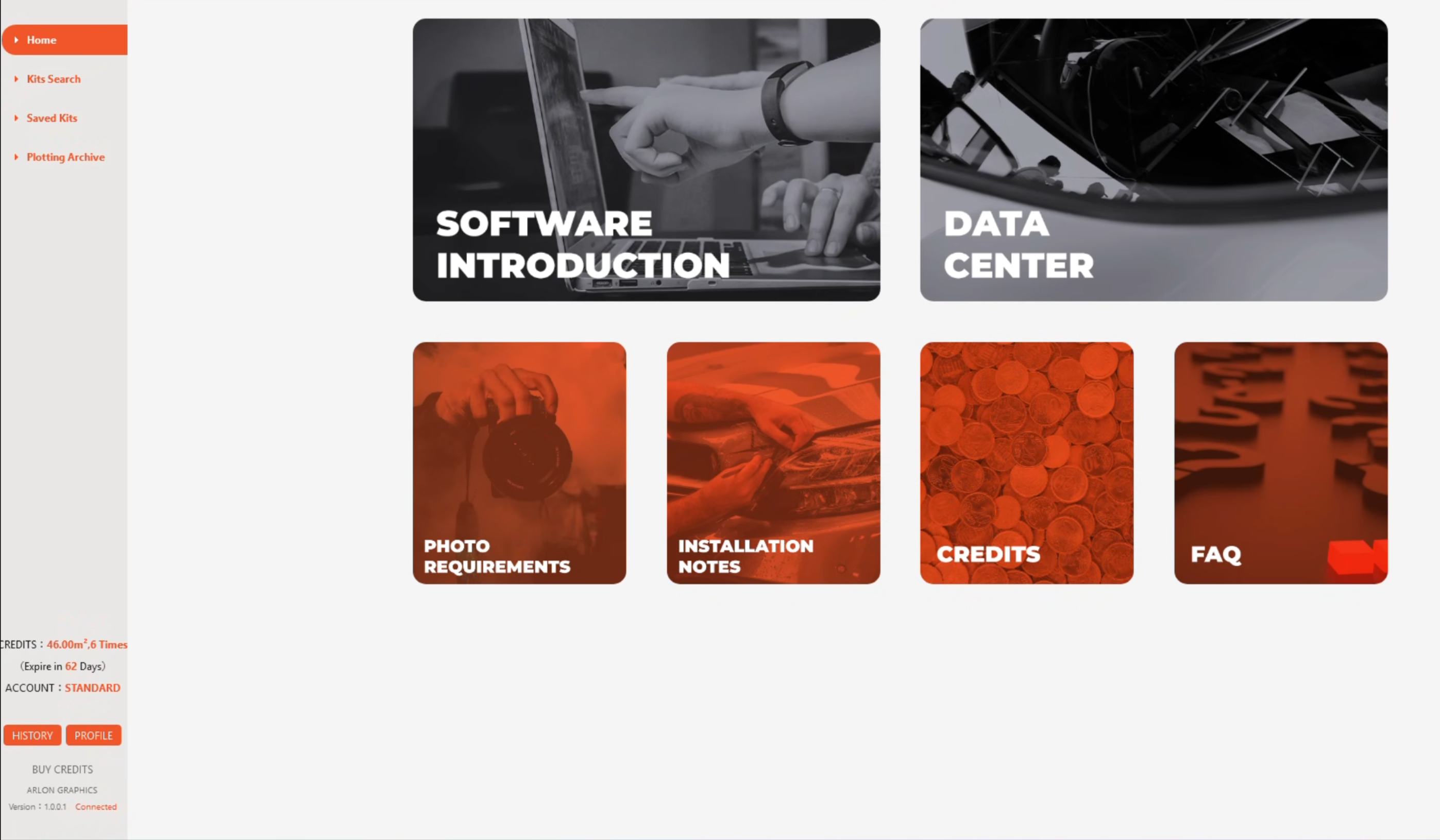

ArlonCutPilot pattern software streamlines your installation workflow with high-precision templates.
Powered by AI nesting, it optimizes layout to reduce material waste and deliver surgical-level precision - increasing your profit on every wrap.
Stop wasting PPF film and install faster than ever.
-
A database with 38500+ full vehicle patterns -
AI nesting to reduce material waste -
Intuitive, installer-focused interface
HOW TO DOWNLOAD AND INSTALL
Follow these 3 simple steps to start your first ArlonCutPilot-powered installation in minutes.
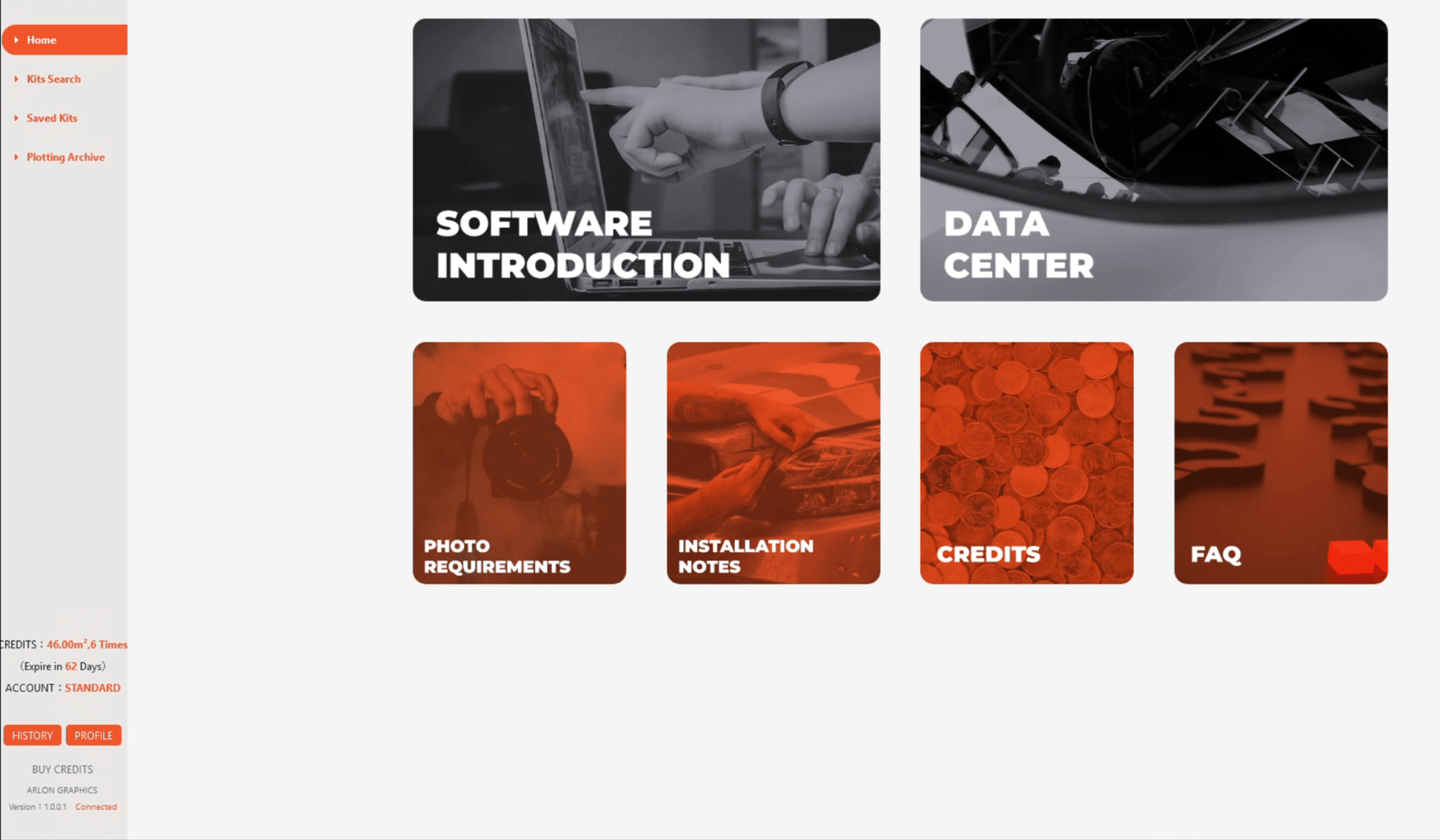
STEP 1
Click here to download the software and follow the setup guide.
System requirement: Windows 10 or newer.
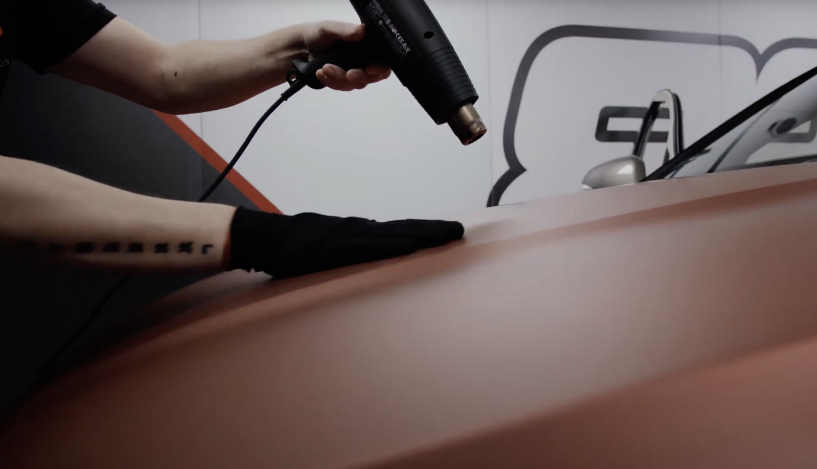
TUTORIAL VIDEOS
Get professional tips and tricks for applying Arlon PPF.
FAQ
Start by confirming the exact vehicle details, including:
- Model year
- Variant or facelift version
- Regional naming differences
Some vehicles may have multiple kit variations. If the pattern is still not available, you can submit a request using the Request a New Kit option inside the software.
ArlonCutPilot patterns are based on real vehicle measurements and captured using high-precision 3D scanners with tolerances under 0,3 milimeters, ensuring consistent fit and reliable installation results.
However, even within the same model, vehicles may vary due to:
- Aftermarket modifications
- Badge repositioning
- Trim level differences
- Previous repairs
Always confirm fit before final installation and use professional judgement when additional trimming or edge allowance is required.
Precut patterns are designed to reduce cutting on painted surfaces, improving installation safety and consistency.
Some minor trimming or adjustment may still be required depending on vehicle condition, installation technique, and environmental factors.
Manual trimming may be preferable on:
• Heavily modified vehicles and custom kits
• Deep recessed areas (e.g. badge zones or certain bumper openings)
• Panels with significant previous damage or repaint
Using installer judgement ensures the best final result.
First confirm:
- Correct vehicle year and variant
- No aftermarket modifications
- Proper film positioning during installation
If additional flexibility is needed, adding a small edge allowance before cutting can help accommodate alignment or stretch on curved panels.
If you believe a pattern may be inaccurate, please report it to our Customer Support. Your input helps us fine-tune pattern accuracy and ensures ArlonCutPilot continues to develop in line with real installer needs and experience.
The pattern database is updated on a regular basis as new vehicle models become available and installer requests are processed. Updates are delivered automatically within the software.
There isn’t a fixed timeline for completing pattern requests, as our top priority is ensuring every pattern meets our quality standards. The timeframe can vary depending on factors such as vehicle availability and the clarity of the photos provided. That said, we always aim to complete requests as quickly as possible. Submitting full vehicle details and clear reference images can help speed up the process.
Yes. Before sending patterns to the plotter, you can review layouts, reposition panels, and add small edge allowances where extra alignment flexibility or stretch may be needed.
Planning layout in advance helps reduce material waste and improve installation efficiency.
To optimise film usage:
- Review layouts before cutting
- Use the AI nesting feature when available
- Confirm film width and bleed positioning
- Group panels efficiently for multiple jobs
Careful layout planning improves profitability and workflow efficiency.
Yes. When wet installing, the film can be easily lifted and repositioned if necessary. Always re-wet the surface before adjusting to avoid unwanted adhesion or stretch marks.
Confirm the following before starting a new cut:
- Correct blade pressure and speed settings
- Film width and positioning on the plotter
- Proper pattern orientation
- Plotter origin point and scaling settings
Running a small test cut is recommended when using new material or settings.
Check that:
- The plotter is powered on and properly connected
- Correct drivers are installed
- Communication settings match your plotter configuration
Restarting both the plotter and software may help resolve connection issues.
If the problem continues, contact our customer support with your plotter model information.
Cut credits are deducted automatically when preparing patterns for cutting.
The required film area is calculated by the software based on selected panels.
Credits can be claimed using the Roll ID printed inside the film packaging.
Once activated, credits are added to your account and can be used immediately. You can watch a short guide on how to claim your credits on our YouTube channel.
Claimed credits remain valid for one year from the activation date.
If you need assistance, please contact Arlon customer support or your local distributor.
ArlonCutPilot is designed as a working tool for installers, helping simplify pattern preparation, cutting, and installation planning. Our team actively supports installers in the field, and your feedback plays an important role in improving pattern accuracy and evolving the software to meet real installation needs.